These are Sol's exact in-game settings for AION 2 at Global Launch. Several of these are not optional - if you skip them, you are at a real disadvantage in large-scale PvP and in frame-sensitive combat. This guide covers every category: graphics, camera, display info, hotkeys, combat targeting, looting, audio, and UI. Most of what makes the biggest impact are toggles that are off by default.
🖥️ Monitor and Refresh Rate
Before touching in-game settings, verify your monitor is actually running at its maximum refresh rate. Windows does not always default to this.
- Right-click the desktop and go to Display Settings.
- Scroll down and click Advanced display.
- Under "Choose a refresh rate," set it to the maximum your monitor supports.
Sol runs a 144Hz MSI gaming monitor. The higher your refresh rate, the more responsive the screen - you see and react to things faster. This is one of the biggest free advantages in PvP and it costs nothing.
🎨 Graphics Settings
- Resolution Scale: Quality. Performance mode looks worse and the scaling is off. Use Quality.
- Overall preset: Custom. Most things on High.
| Setting | Sol's Value | Why |
|---|---|---|
| Effects Quality | Normal | High/Ultra is oversaturated and distracting in combat. Normal makes the game feel closer to AION 1 or a fighting game. |
| Mass Combat Quality | Very Low | Always set this as low as possible. Large-scale performance hit is huge at higher settings. |
| Post-Processing Quality | Very Low or Low | Most people prefer less screen bloom and effect saturation. Very Low looks better for the majority and reduces screen clutter significantly. |
| Identical Player Appearance | On | Reduces CPU load in large-scale fights by rendering all players with the same appearance. Significant performance gain in mass PvP. |
🎥 Camera Settings
| Setting | Sol's Value |
|---|---|
| World Map Transition | Off |
| Camera Perspective | Default |
| Maximum View Distance | Far |
| Camera Shake | Off - turn this off. |
| Horizontal Movement Speed | 50 |
| Camera Vertical Speed | Slightly below 50 (lower than horizontal) |
| Display Weapon Outside Combat | On |
| Teleport Effect | On |
| Display Equipped Title Effects on Nameplate | On |
| Title Effect on Self Nameplate Only | Off |
👁️ Display and Info
These settings live under Combat Info and Info Display. Several of them have a direct impact on large-scale performance.
| Setting | Sol's Value | Notes |
|---|---|---|
| Display Player Nameplates | Off | The single biggest large-scale performance setting. When off, you only see names of your party and anyone you are targeting. Massive CPU relief in mass PvP. Sol keeps this off permanently. |
| Display My Spirit's Nameplate | Off | You should know what spirit you have out. Turn it off. |
| Display Monster Nameplates | On | Useful to know what mobs are around you. |
| Gather Materials | On | Keep on for gathering nodes. |
| Displaying Others' Pets | Off | No reason to render everyone else's pets. Turn it off. |
| Displaying My Pet | Your call | Much lower impact than others' pets. |
| HUD Key Guide | Off (once you know controls) | Turn all of these off after you understand the layout. They clutter the screen for no benefit once they are learned. |
| Shugo Festival Displays | On | Keep these on - they are useful event indicators. |
| Display Network Status | On | Useful for diagnosing lag during play. |
💥 Damage Numbers
This one is a preference, but Sol strongly recommends turning damage numbers off - and here is why.
When damage numbers are off, AION 2 plays like a fighting game. You watch your character, your positioning, and your opponent's animations - not a wall of floating numbers. With them on at high or ultra effects quality, a multi-hit combo spawns 12+ separate floating numbers simultaneously. That is extra CPU overhead and it is pure screen clutter.
⚔️ Combat Settings
| Setting | Sol's Value |
|---|---|
| Game Mode | AION 2 Mode |
| Adjusted Aim Position | Default |
| Select Aimable Target | Hostile Target |
| Auto Target Upon Skill Use | Off |
| Pursue Target Skill Activation | Off |
| Set Main Target Upon Attack | On |
| Set Main Target Upon Right Click | Off |
| Set Main Target Upon Left Click | Off |
| Skill Queue | On |
| Quest Auto Move | Personal preference |
| Auto Sprint | On - always |
| Autoflight During Odal Extraction | On |
🎯 Target Scanning
This is one of the most impactful PvP settings in the game and most players never configure it. Target scanning controls what your Tab key prioritizes when selecting enemies.
Set scan mode to Front of Camera, then configure the priority ranking as follows:
- Hostile Players - top priority
- Players Attacking Me - second
- Targets Already Hit - third
Everything below those three is lower priority and largely irrelevant in competitive play. As long as those three are at the top, your tab-targeting logic will match Sol's setup.
After setting up the priority ranking above, Sol also changes the scan mode to Closest First. When combined with the priority ranking already configured, this still respects hostile players first and selects the closest one when you tab. The priority ranking locks the targeting logic - Closest First then applies within that constraint.
⌨️ Hotkeys
Sol's specific keybinds are personal to his playstyle, but several hotkey categories are universal must-haves regardless of class.
- Flight Up and Flight Down - bind these. Flying without dedicated up/down keys is clunky and will get you killed in abyss fights.
- Combat Analysis - this brings up the in-game DPS meter. Know where this is bound.
- Marker Keys (Numpad) - Sol uses the numpad for applying target markers. If you have extra mouse buttons, those work too. Marking targets is very important for callouts in group PvP. Setting up mark keys is essential if you lead calls.
The in-game meter only shows your own DPS. Sol recommends NotMeter as an external DPS meter - it shows you other players' DPS, which matters both for improving your own output and for identifying weak links during Transcendence content where one person's low DPS can fail the whole group.
In the menu key settings, remove anything bound to letters you are likely to fat-finger during normal gameplay. Sol removes bindings from G, H, and Y because accidentally hitting those keys in the middle of combat is a real problem. If a key is near your main action cluster and you would not intentionally press it, unbind it.
🎒 Looting and Auto Use
Looting settings are mostly default - nothing critical there. The one setting worth configuring is Auto Use HP Condition.
| Setting | Sol's Value | Notes |
|---|---|---|
| Auto Use HP Condition | 70% | Sol runs 70% for mixed PvX play. For pure PvP you would bump this to 90% - you want to pot earlier when not getting healed. For PvE with a healer, 70% prevents you burning pots when the healer is about to top you. |
🔊 Audio Settings
Sol uses PC (Speaker) mode for audio output, not Headphones mode. The reason: the range between minimum and maximum volume is wider in PC mode, which gives finer volume control when mixing with an external app.
He mixes all audio through SteelSeries GG, which separates game audio, Discord chat, mic, and media into individual channels. The rough mix Sol uses:
- Discord chat - slightly louder than game audio (you need to hear calls clearly)
- Game audio - mid level
- Media / music - around 48%, lower than Discord and roughly equal to game audio
If you do not use an external audio mixer, the Headphone mode is the better default for most players. SteelSeries GG is free - Sol's game audio preset is equalized based on AION 1's audio profile as a starting point.
🖱️ Mouse and Hardware
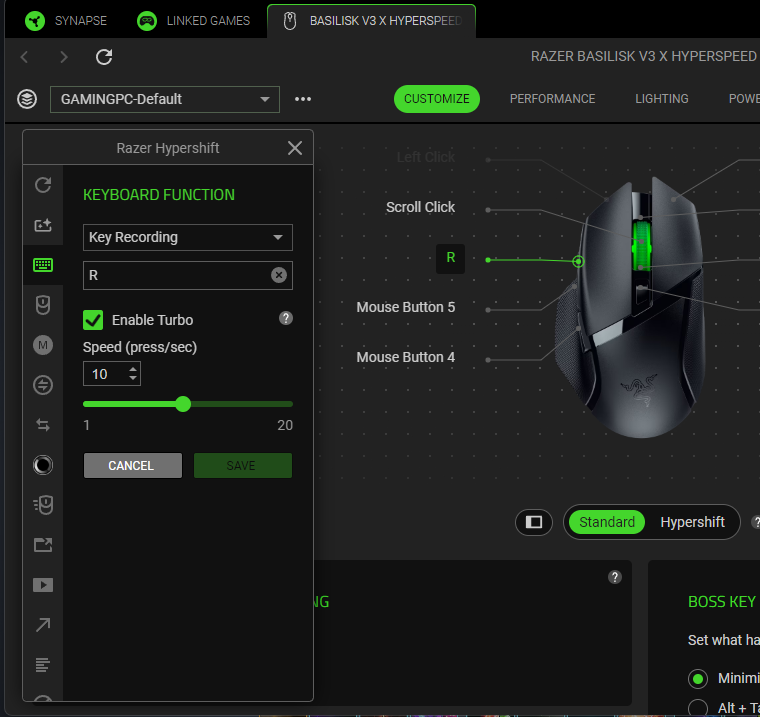
Sol uses a Razer HyperSpeed wireless mouse with Razer Synapse for macro management. The key insight is that AION 2 requires a lot of button presses - especially for animation-cancel rotations - and concentrating those presses on your mouse is easier on your hands and faster in execution than alternating between keyboard and mouse constantly.
Sol's approach: the HyperSpeed extra button is bound to the R key on the keyboard. That lets him execute his main DPS rotation (Judgment on R + Pummel macro on right click) entirely from the mouse with his thumb and trigger finger - no keyboard hand switching mid-combo.
📁 Sol's UI File (Download)
Sol's exact UI layout is available as a file you can import directly into AION 2. This gives you his full HUD configuration: skill bar positions, minimap, chat panels, and everything else.
- Download the UI file from this page (link below when available).
- Open File Explorer and navigate to
C:\Users\[YourUsername]\ - If you do not see the AppData folder, go to the View menu and enable Show hidden items.
- Navigate to:
AppData\Local\AION2\AION2_Steam\ - Find your User HUD folder. If it does not exist, create it - it means you have not yet saved a custom UI in-game. Log in once and adjust any setting to generate the folder.
- Place the downloaded file into the User HUD folder.
- Launch AION 2 and load the UI profile in your interface settings.
SolAshur-UI-Preset.dat - place this in your UserHud folder following the steps above, then load it as a UI profile in-game. Join the Discord if you have any issues importing it.
- Monitor refresh rate set to maximum in Windows display settings
- Effects Quality: Normal
- Mass Combat Quality: Very Low
- Post-Processing Quality: Very Low or Low
- Identical Player Appearance: On
- Camera Shake: Off
- Display Player Nameplates: Off
- Displaying Others' Pets: Off
- Damage Numbers: Off
- Target Scan: Front of Camera, priority ranking Hostile Players / Players Attacking Me / Targets Already Hit